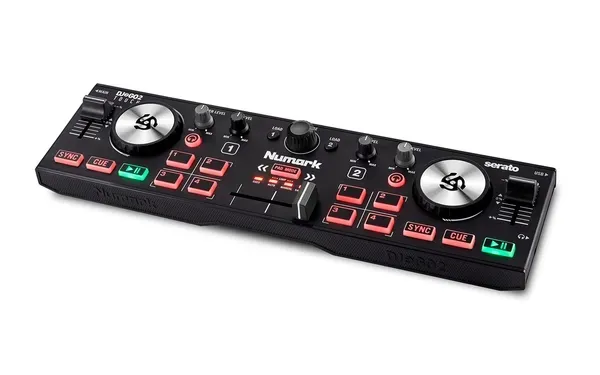
Choosing between a standalone DJ system and a controller used with a laptop affects the entire workflow: where music is stored, how playlists are prepared, what you take to a performance and how you diagnose a technical problem. A large screen or the word standalone does not explain those differences by itself. This guide compares the two approaches using Numark Mixstream Pro+, Mixtrack Pro FX and DJ2GO2 Touch as examples. The focus is library preparation, removable media, audio connections, offline rehearsal and practical backup planning. Hardware details are checked against Numark and Engine DJ documentation. The scenarios are suggestions for your own evaluation, rather than claims that we performed hands-on testing. The aim is to build a system whose complete signal and file path you understand, from the music file to the speakers, and can reproduce at another venue.

1. Where music playback happens
In a conventional controller setup, DJ software on the computer processes the music files. The controller sends commands, while its audio interface, where provided, supplies the required outputs. The laptop is an active part of the system: removing it does not simply leave the same playback process running elsewhere. In a standalone unit, an embedded system performs the relevant processing and presents the library on its own screen. This changes the workspace but does not remove the need to prepare music. Consider where you prefer to search, check markers and edit playlists. Some users value a large display and keyboard; others want to avoid a separate laptop stand. Counting boxes on the table is not enough. Follow the complete sequence from selecting a recording to hearing it in headphones and the main mix. That is the route worth testing before making a decision. Knowing which component currently handles playback also makes later setup and troubleshooting more straightforward.
2. Standalone does not necessarily mean battery powered
In DJ equipment, standalone commonly means that playback can operate without a laptop. It does not automatically promise an internal battery, independence from a power outlet or access to every online function without a network. Mixstream Pro+ uses external power; do not transfer the battery capabilities of the different Mixstream Pro Go model to it. Similar names and enclosures make that mistake easy. Before travelling, identify the exact model and check its power supply. For an outdoor setup, plan electricity for both the DJ system and speakers separately. Even a battery-powered player does not make connected powered speakers independent of mains power. This distinction may seem minor in a practice room, but it can determine whether an entire event is feasible. Treat laptop-free, internet-free and outlet-free operation as three separate requirements. Confirm each through the relevant specifications and a realistic test instead of inferring all three from a general promotional description or an outdoor product photograph.
3. Start with your workflow
Describe a normal day of working with music. Do you prepare selections at home and perform from a checked collection, or continually search a very large library? Will you need to respond to requests, use a microphone, connect to a venue mixer or carry the equipment on public transport? Home practice benefits from convenient placement and a quick start. Mobile work puts more emphasis on predictable connections, transport protection and backup media. A laptop keyboard and display can remain useful for organising a large collection even after buying a standalone system. List your essential actions and test each on the actual model. A feature count does not reveal how many steps your daily task requires. A good choice reduces unnecessary operations while retaining control over the things that matter in your performances. Pay particular attention to time-sensitive actions: finding the next track, returning to a playlist, checking headphone monitoring and recognising the currently selected source without hesitation.
4. Mixstream Pro+ as a standalone example
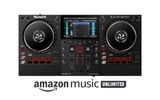
Numark Mixstream Pro+ combines an embedded Engine DJ system, a touchscreen, two decks and physical mixing controls. Local music can be accessed through two USB media ports and an SD slot, while the main signal is available through XLR or RCA outputs. In this workflow, removable media becomes a prepared working library rather than an arbitrary folder of files. The practical benefit is the ability to organise a performance around one unit and a checked export. You still need to learn screen navigation and source selection. Before performing, load recordings from several playlists, check start markers and find a particular track through search. This reveals whether the actual working speed suits you. A screen is not a substitute for familiarity with its interface, especially when a decision must be made during a transition. Rehearse your usual sequence without prompts so you can distinguish actions that already feel natural from those that need more practice before using the equipment at a venue.

5. The laptop's role in a controller setup
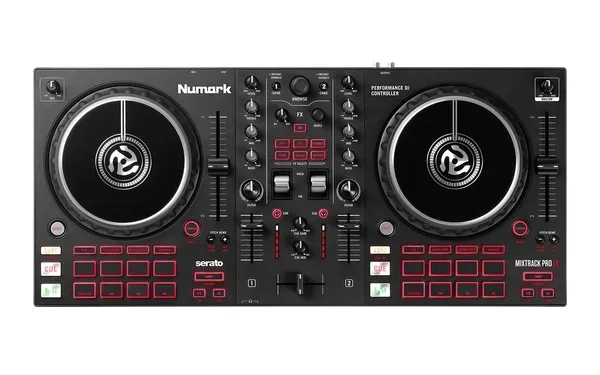
With Mixtrack Pro FX or DJ2GO2 Touch, compatible computer software manages the library, analysis and playback. This can be convenient if you already understand the application, use its playlist system and want substantial information visible at once. A laptop also makes typing, tagging and collection preparation easier. However, check compatibility between the operating system, software version, drivers and required licence. A USB connection does not automatically enable every professional software mode. Choose a stable configuration, test it with your files and record the settings you need. Before performing, know which audio device is selected and where Master and headphones are routed. A familiar computer can be an effective centre for the system when its role is clear. Treat it as part of the working setup rather than an optional accessory. Test the complete combination, including the actual USB cable, power arrangement and storage device, because software running successfully by itself does not confirm that the performance setup is ready.
6. Test hybrid operation as a separate workflow
Some standalone units can also act as controllers for computer software. Numark describes Computer Mode for Mixstream Pro+ with supported DJ applications, although specific functions depend on compatible versions and licences. This is useful flexibility, but the two modes should not be assumed identical. Library access, screen behaviour, navigation and audio settings may differ. If you intend to use both, rehearse each independently and prepare the appropriate cables. Do not experiment with switching modes during a critical part of a performance without understanding what happens to current playback. First establish a primary mode, then treat the alternative as another complete, tested setup. This makes flexibility useful instead of confusing. Write down where the music is stored and which system handles playback in each case. If a problem occurs, you can then inspect the relevant part of the workflow rather than searching for files and settings in two different environments at the same time.

7. A library contains more than audio files
An audio file contains the recording, but a useful DJ library also includes playlists, analysis, markers, loops and other preparation data. Copying only the music folder does not necessarily transfer all that work. Conversely, a list of titles without accessible files cannot play music. Separate two checks: whether the recording itself is present and whether its organisation has survived in the target system. A stable primary storage location and clear version names are helpful. Avoid moving large folders after preparation without checking how the application will locate the files afterwards. For an initial export, use a small collection with a few markers and one loop. Open it on the hardware and compare the results. This demonstrates the difference between music merely existing on a drive and a genuinely prepared working library. Pay particular attention to recently added recordings, which may live in temporary folders or on another drive even though they look identical to the rest of the collection in the software list.
8. Why use Engine DJ Desktop?
Engine DJ Desktop is intended for preparing and organising a collection on a computer. It supports playlist work, analysis and export for compatible Engine DJ hardware. The manufacturer also describes imports from other popular DJ libraries, but verify compatibility for your versions and data types. Do not assume that every specialised feature from another application transfers unchanged. Begin with a small part of the collection and check titles, playlist order, start points and loops on the actual player. Resolve discrepancies before moving the complete library. Computer-based preparation is entirely compatible with laptop-free performance because they are different stages of the process. You can organise material comfortably at home, then use only checked media at the venue. This separation is especially useful when you do not want to edit lengthy lists on a smaller screen immediately before an event. Preparation becomes a calm, deliberate task, while performance uses an already familiar collection whose important details have been confirmed in advance.
9. Organising playlists for actual use
A list of a thousand tracks is difficult to browse during a transition even when title search is fast. Divide music by useful working roles: opening selections, quieter sections, higher-energy material, short transitions and backup choices. Genre and BPM help, but they do not describe every musical function. Two recordings at the same tempo can have very different density and mood. Use comments for details you actually rely on, such as a long intro, immediate vocal or abrupt break before the ending. Avoid an elaborate notation system that is difficult to remember while performing. Check how titles appear on the target screen; long text may be less convenient than on a laptop. A good playlist narrows the choice to several appropriate options without removing your freedom to change direction. A separate small collection of known transitions is useful for testing the system at the start of rehearsal before moving on to less predictable selections and more spontaneous programming decisions.
10. Analysis and start markers
Check tempo, beatgrid and useful start points before export. Automatic analysis saves time, but an incorrect downbeat or half-time interpretation can affect synchronisation and loops. Listen near the beginning, middle and end, especially with live drums or tempo changes. A marker should sit at a musically useful location rather than simply the first waveform peak. A short pickup before the main rhythm may not be the best starting point for a conventional transition. Save a few clear markers instead of many arbitrary ones. After transfer, open the same passages on the standalone unit and confirm that their behaviour matches your intention. If you edit timing information on the hardware, investigate how those changes return to the main collection. Do not assume automatic two-way transfer of every data type. A small test with an unmistakable marker often explains the process more clearly than trying to assess a migration of several thousand recordings in one operation.

11. Choosing a supported file system
Numark lists exFAT and FAT32 for Mixstream Pro+, with exFAT recommended in the documentation. Support on one device does not establish compatibility with every other DJ player. If you work across different equipment, check each model independently. Formatting changes the file system and can erase data, so first save anything needed elsewhere and confirm that the intended drive is selected. Do not format blindly just because a drive is missing from the source list. The cause might be a connection issue, an unfinished export or a fault. A separate drive with known contents is useful for the first test. After preparation, check it on the hardware itself. Seeing exFAT in the computer's properties confirms only one parameter; it does not prove that every track, playlist and cue point transferred successfully. Readiness is demonstrated when you can locate and play the required material through the workflow you actually intend to use during the performance.
12. Capacity, speed and physical practicality
Advertised capacity is not the main criterion for a working DJ drive. Estimate the size of your prepared collection and leave room for updates, then test copying reliability, export duration and track loading in your own system. A headline maximum transfer speed may not describe performance with many small files and a library database. Consider the enclosure too. A long, heavy drive protrudes further from the panel and may interfere with nearby cables; a tiny one can be easy to lose when packing quickly. Label primary and backup media clearly. Do not fill every available space with untested music just in case. A checked collection with a logical structure is more useful than an enormous library you have not listened to or tested on the target device. Think about transport as well: the drive should be accessible without being loose among heavy cables and adapters that could damage its connector or make it difficult to find when needed.
13. Exporting and checking the result
Select the required playlists and export through the application's intended tool, including Sync Manager in the relevant Engine DJ workflow. Wait for completion and inspect any error messages. Do not pull the drive out merely because one progress indicator disappears. Confirm that all planned operations have finished, then eject it correctly. Connect it to the standalone hardware and open several playlists. Load tracks from the beginning, middle and end of the selection, checking playback and markers. This is the step that demonstrates readiness. A successful export message on the computer does not show how the collection behaves on another device. Keep a brief note of the date and contents of the checked drive. After a significant update, test the changed material so your backup does not quietly become outdated. If several playlists were meant to transfer, confirm each one. Successful transfer of one selection does not automatically prove that the others were selected or completed as intended.
14. Why copying a folder may not be enough
Many devices can read audio from folders, but that does not necessarily produce the same experience as a prepared library export. Playlist access, prior analysis, cue data and the time needed to prepare a track can differ. On-device analysis is useful where supported, but an unfamiliar file before an important transition is a poor first test. Compare the workflows at home: open a simply copied file, then the same recording from a prepared library. Observe which information is available and how many steps are required to begin playing. Folders can be convenient for an informal session, while a structured performance often benefits from advance organisation. Either choice should be deliberate. Opening one track successfully is different from being able to manage the whole collection quickly. Check the folder hierarchy too. A structure that feels clear on a large computer display may require excessive navigation on the player's smaller screen, particularly when you need to return to a previous selection quickly.
15. USB media ports and computer connections
USB connectors on DJ equipment may serve different purposes. Mixstream Pro+ has separate roles for its media ports and computer connection. Likewise, a USB connection on Mixtrack Pro FX does not mean that the controller independently reads a flash drive full of music. Check panel labels and the manual's connection diagram before plugging things in. This matters when changing systems because familiar habits can suggest the wrong connection. Build the cable set around the required workflow instead of merely matching plug shapes. Computer operation needs a working data cable and compatible software, while standalone playback needs supported media containing accessible files. If the library is not visible, check source selection and port function first. This often provides an answer faster than changing formats or re-exporting an entire collection. Labelling cables by role is useful, particularly when charging accessories and other equipment nearby use similar-looking connectors for different jobs.

16. Streaming and local files serve different needs
An online catalogue can be useful for finding music, but availability depends on the provider, country, plan, account, system version and network. Logos in an older product photograph do not establish that every depicted service works in your Ukrainian setup. Before purchasing, check the integration you need against current official conditions. Do not assume that an ordinary listening subscription includes DJ functionality. Similarly, not every streamed track can be recorded into a mix or stored for offline performance; the provider's rules and supported features matter. A local collection tested without a network provides a predictable foundation for practice and work. Streaming can then supplement the library rather than become the only condition for starting music. This guide does not promise availability for a particular service because that requires checking your account and region. Even after a successful home connection, consider the venue network and prepare a workflow that does not depend on an unexpected account sign-in during the event.
17. Rehearsing without an internet connection
If you intend to use local music, test that workflow independently of online functions. Prepare the media, start the system without a network connection and open the required playlists. Perform several transitions and check search and saved markers. The purpose is to establish that the music really is local rather than dependent on links to an unavailable source. Run an equivalent test on a laptop with files on its working storage or a checked external drive. If part of the collection disappears offline, identify its origin before the event. Do not judge the entire set from one successful track. Sample different playlists and formats, particularly recent additions. After a successful rehearsal, record which files and equipment were used. This reduces the chance of replacing the tested configuration with an untested version just before travelling. Later additions deserve their own check because they were not part of the earlier full rehearsal, even when they appear in an otherwise familiar playlist.
18. Connecting XLR and RCA outputs
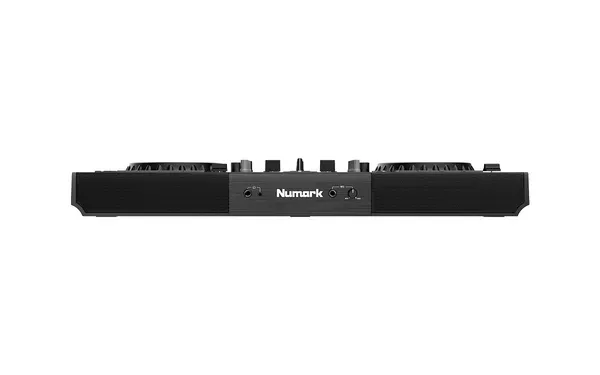
Mixstream Pro+ provides balanced main XLR outputs and an unbalanced RCA pair. Mixtrack Pro FX uses RCA for its main signal, while DJ2GO2 Touch uses a compact 3.5 mm output. These differences affect cables and connections to speakers or a venue mixer. Check the receiving input's function and expected signal level; matching connector shapes do not always mean matching purposes. Do not connect a line output to an input intended for another source just because an adapter fits physically. Establish who controls the final level: you through Master or an operator at the external mixer. Begin with reduced levels and check left and right channels gradually. Clearly labelled cables make setup quicker and reduce confusion between the main and headphone signals. A written connection plan for a regular venue is helpful. It turns the next setup into a repeatable process instead of another search for suitable sockets and a series of improvised connection experiments.

19. Built-in speakers and venue sound
Mixstream Pro+'s built-in speakers with their own level control are convenient for home preparation, quick checks and personal listening. Their presence does not establish adequate coverage for a hall or outdoor event. Required level, audience distance, background noise and musical content determine the needs of the external sound system. Plan venue speakers separately and evaluate the built-in ones according to their actual role. Check how their control relates to the main output in your workflow so quiet local sound is not mistaken for a missing venue signal. Comparing headphones with the main mix is useful during practice, but unnecessary competing loud sources nearby can make monitoring harder. Before performing, establish where you will hear the reference sound and test that arrangement with the intended equipment placement. Comfortable home listening does not guarantee equivalent monitoring in a noisy room. Treat monitoring conditions as a separate requirement from the convenience of the control panel and integrated display.
20. Check headphones and microphone separately
Regardless of system format, pre-listening should work independently of the audience signal. Check the headphone output, channel selection and Cue/Master balance where that control exists. Then test the microphone workflow separately if announcements are required. A microphone input does not automatically provide every effect, routing option or external-mixer function. Read the relevant instructions and listen to the main output. Start at a modest level, avoid pointing the microphone towards the speakers and check speech intelligibility over music. If a presenter uses a separate system, agree who controls what beforehand. Do not investigate microphone operation for the first time when an announcement is already due. A short individual test of each source makes problems easier to isolate than testing every connection simultaneously at high volume. Afterwards, return controls to a known starting state so an accidentally open input or altered monitoring balance does not affect the beginning of the musical performance.
21. Power, startup and shutdown
Use the power arrangement specified for the exact model and check that the connection is secure. The Mixstream guide describes preparing the sources and system before powering amplification and loudspeakers, with the amplification side switched off first at shutdown. Follow the instructions for the other equipment in your signal path as well. Keep ventilation clear and avoid pulling cables tightly over a table edge. For a laptop, account for its charger, outlet availability and realistic operating duration in the intended mode. Before switching off, finish playback and library operations, then disconnect media correctly. Sudden power removal should not be the routine way to end a session. Assemble a checked cable set and label the power adapter so a similar-looking supply from another product is not packed by mistake. At the venue, retain access to essential connections. Checking one cable should not require moving the entire live setup and disturbing neighbouring plugs or controls.

22. Backing up the library and equipment plan
A backup is useful only when its contents are known and its operation has been checked. A second drive with an old selection is not an up-to-date reserve for the prepared set. After an important export update, test both drives and identify their versions. Store original audio and library data so failure of one medium does not destroy all preparation. A laptop setup also benefits from accessible local files and a clear method of restoring the working configuration. A spare cable of the required type may be more useful than an additional untested accessory. Do not call an alternative operating mode a backup until it has been tried with real music and the necessary connections. A good fallback plan is concise: what failed, what replaces it and which steps are required. Rehearse it at home. Also distinguish data backup from playback continuity: a library copy preserves work, but does not itself guarantee instant audio recovery after the main device fails.
23. Software and system updates
New versions may bring functions and fixes, but an important performance needs a tested configuration. Read official release information for your exact hardware and software, preserve necessary data and leave time for rehearsal. Do not perform a major update immediately before travelling merely because a notification appears. After changing versions, check the library, playback, markers, audio outputs and required mode. In a laptop system, consider the interaction between operating system, driver and DJ application. For standalone hardware, follow the update instructions and do not interrupt power during the procedure. There is no single correct version for every user; compatibility and a verified workflow matter. Record the configuration used in a successful test so a later problem has a concrete comparison point. If an update changes navigation, practise the affected operations. Technical operation alone does not mean that you can perform familiar actions at the same speed without learning their new location or behaviour.
24. When music cannot be found or heard
Begin with straightforward checks: the selected source, correct port, secure connection and actual files on the drive. Then check supported formats and export completion. If a playlist appears but one recording fails to load, compare it with a known working file from the same selection. This separates a track-specific issue from a problem affecting the whole drive. If playback moves but no sound reaches the speakers, inspect channel levels, crossfader, Master and speaker connections. Do not start by deleting the library or formatting media; that may remove useful data without addressing the cause. Change one parameter at a time and note the result. In computer mode, also check the selected audio device and whether the file is accessible in its actual storage location. Following the path systematically is more informative than replacing every setting at once. If the fault only appears with one cable or drive, retain that observation because it significantly narrows the next stage of investigation.
25. Making the decision after rehearsal
Compare formats through the same practical task: find a recording, prepare it in headphones, complete a transition, change playlist and shut down correctly. Assess where you spend less attention searching for functions and better understand the system's current state. Mixstream Pro+ illustrates a prepared standalone workflow; Mixtrack Pro FX demonstrates a fuller hardware panel used with a laptop; DJ2GO2 Touch shows the advantages and compromises of compact control. Include necessary cables, media, transport protection, headphones and relevant software costs in the budget. Do not choose on the strength of one word in a product name. After testing, explain concretely what you gain and which extra steps you accept. The appropriate system is one you can prepare, verify and assemble repeatedly while keeping attention on the music. Before the first event, rehearse with the exact kit that will travel. One complete cycle from startup to saving and ejecting media is more revealing than checking individual components separately on different days.